No controller?
Use your phone.
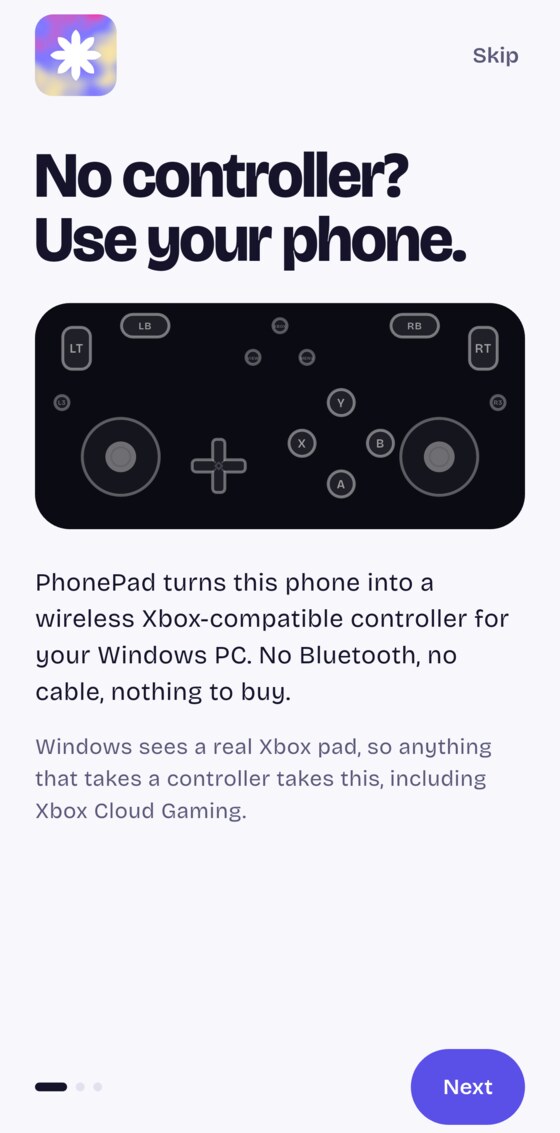
PhonePad turns an Android phone into a wireless Xbox-compatible controller for Windows. No Bluetooth, no cable, nothing to buy.
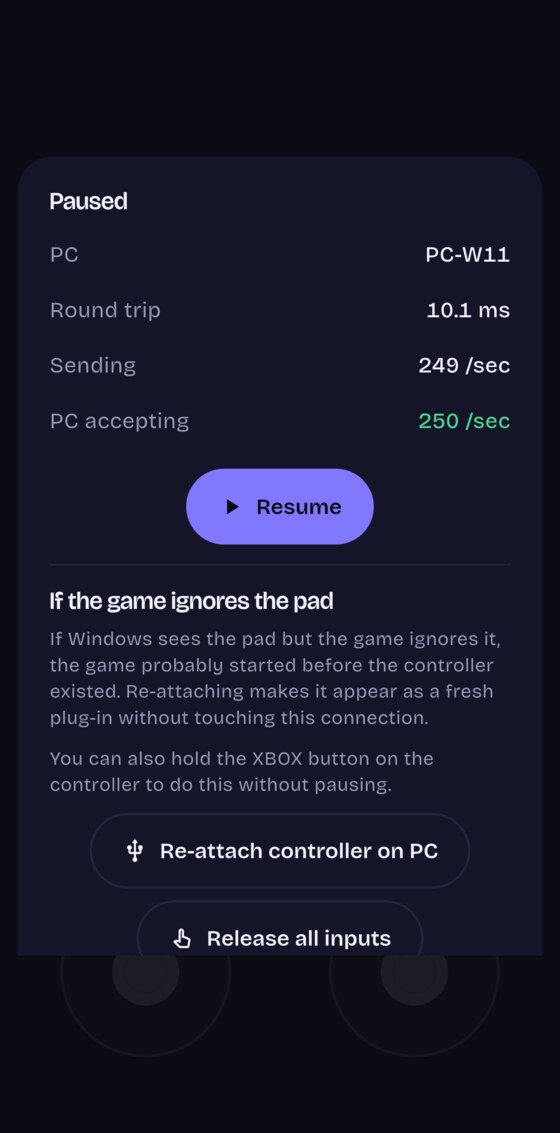
4.9–8.0 ms round trip 249/sec packets a second 0.0% loss over 42,805 packets 0.1–0.6 ms jitter
Measured on a Galaxy S24 Ultra and a Windows 11 PC on home Wi-Fi. The method and the raw figures are in the benchmarks. Nothing on this site is a claim the repository does not support.
Windows sees a real controller
Not a keyboard emulator, and not a remote-desktop trick. PhonePad creates a virtual Xbox 360 pad on an XInput slot, so anything that takes a controller takes this.
-
Xbox Cloud Gaming
Play Game Pass titles in the Xbox app or a browser with no controller in the house. There is one thing to know about how cloud clients bind controllers, and it is explained here.
-
Steam, emulators, browser games
Anything reading XInput, DirectInput, GameInput or the browser Gamepad API sees an ordinary Xbox pad. No per-game configuration.
-
Nothing leaves your network
No account, no server, no telemetry. The phone talks to your PC directly over your own Wi-Fi, and every packet is authenticated so nothing else on the network can inject input.
Sticks that behave like sticks
Most on-screen controllers feel dead at the start of the travel and then far too sharp. That is two deadzones stacked on top of each other. A physical stick needs an inner deadzone because it has spring slop and sensor drift to hide, and the game at the far end already applies one on that assumption. Add another in the app and the first quarter of your thumb's travel does nothing at all.
PhonePad does the opposite. The moment your thumb leaves centre, the output starts just past the game's own dead band, and the rest of your travel is spent on the range the game actually responds to.
| Thumb travel | Typical app | PhonePad |
|---|---|---|
| 5% | nothing | 1.2% |
| 10% | nothing | 4.3% |
| 20% | nothing | 12.3% |
| 30% | 6.4% | 21.9% |
| 50% | 33.2% | 44.2% |
| 100% | 100% | 100% |
What the game receives, composed with a typical in-game deadzone of 0.15. Measured on real hardware.
How it works
-
Run the companion on your PC
A single self-contained program. No installer, no .NET. It creates the virtual controller Windows can see.
-
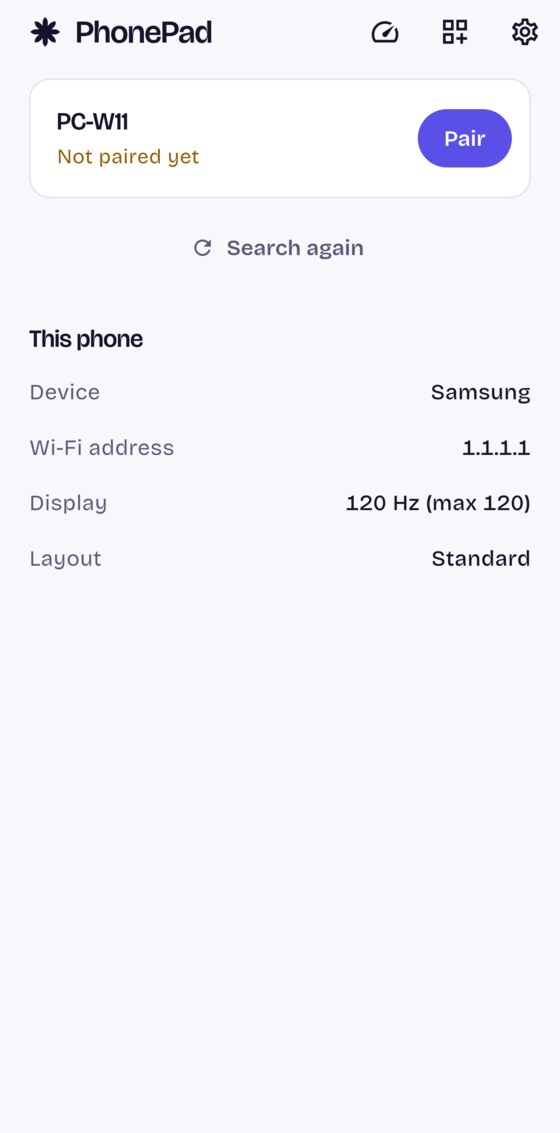
Open the app and tap your PC
Your PC appears on its own within a second or two. Type the six digits it shows, once, ever.
-
Play
After the first pairing, opening the app and tapping your PC goes straight to the controller.
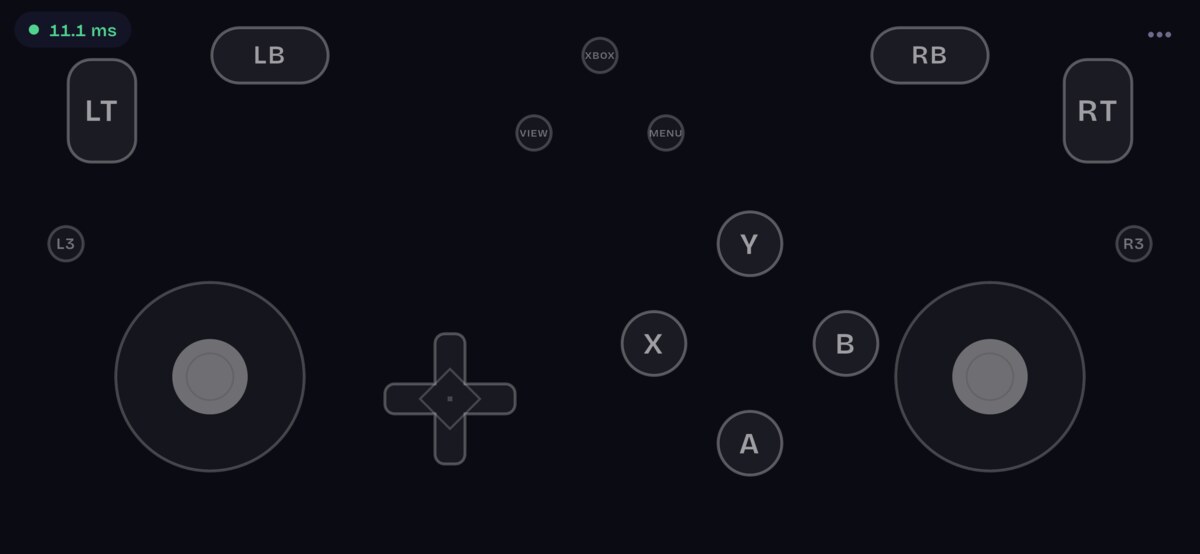
What it looks like
Real screenshots, from a real phone.
Make it yours
Nothing about the on-screen pad is fixed. Move, resize, rotate and hide any control; tune deadzone, sensitivity and response per stick; keep separate arrangements for landscape and portrait that switch when you rotate the phone.
Four presets ship: Standard, Racing with a larger left stick and analogue triggers, Precision for aiming, and Southpaw.
Open source, and staying that way
PhonePad is GPL-3.0. The whole thing is on GitHub: the Flutter app, the Rust companion, the wire protocol, the tests and the measurements behind every number on this page.
PhonePad is free and open source, and the controller is not going behind a paywall. If it saved you buying one, you can help pay for the time.